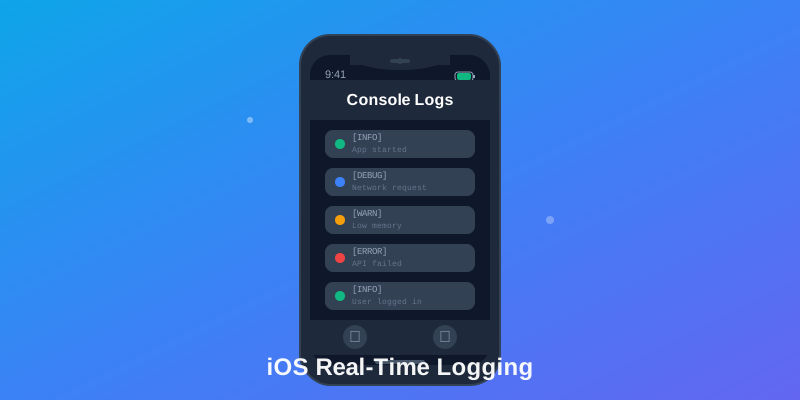
Real-time logging is essential for debugging iOS apps in production. Unlike traditional logging that requires physical device access, real-time logging streams logs to a remote service instantly, allowing you to monitor app behavior, debug issues, and track user flows as they happen. This guide shows you how to set up professional real-time logging in your iOS app.
Why Real-Time Logging Matters
- Debug production issues - See what's happening on user devices right now
- Monitor critical flows - Track payment, authentication, or onboarding processes
- Reduce MTTR - Mean time to resolution drops when you have immediate visibility
- User-specific debugging - Filter logs by user ID to investigate reported issues
Setting Up Logtrics SDK
1. Install via CocoaPods
# Podfile
pod 'Logtrics', '~> 2.0'

# Then run
pod install
2. Initialize in AppDelegate
import Logtrics

func application(_ application: UIApplication, didFinishLaunchingWithOptions launchOptions: [UIApplication.LaunchOptionsKey: Any]?) -> Bool {

    // Initialize with your API key
    Logtrics.initialize(apiKey: "your_api_key_here")

    // Optional: Set user context
    Logtrics.setUser(id: "user_123", email: "user@example.com")

    return true
}
3. Add Logging Throughout Your App
// Different log levels
Logtrics.debug("Cache hit for key: \(key)")
Logtrics.info("User logged in successfully")
Logtrics.warning("API response time: \(responseTime)ms - slower than expected")
Logtrics.error("Failed to load user profile", error: error)

// Add context with tags
Logtrics.info("Payment processed", tags: ["payment", "success"], data: [
    "amount": 99.99,
    "currency": "USD",
    "paymentMethod": "credit_card"
])
Advanced Features
Custom Log Levels and Filtering
// Set minimum log level (debug/info/warning/error)
Logtrics.setMinimumLogLevel(.warning) // Only warnings and errors

// Filter sensitive information
Logtrics.addRedactionRule(pattern: "password=([^&]+)", replacement: "password=***")
Logtrics.addRedactionRule(pattern: "ssn=([^&]+)", replacement: "ssn=***")
Network Request Logging
// Automatically log all network requests
Logtrics.enableNetworkLogging()

// Or manually log specific requests
func fetchUserData() async {
    let startTime = Date()
    do {
        let data = try await networkClient.fetch("/api/user")
        let duration = Date().timeIntervalSince(startTime)

        Logtrics.info("API request succeeded", data: [
            "endpoint": "/api/user",
            "duration": duration,
            "status": 200
        ])
    } catch {
        Logtrics.error("API request failed", error: error)
    }
}
User Session Tracking
// Track user sessions
Logtrics.startSession()

// Add breadcrumbs for user flow
Logtrics.addBreadcrumb("Opened product details")
Logtrics.addBreadcrumb("Added item to cart")
Logtrics.addBreadcrumb("Started checkout")

// End session
Logtrics.endSession()
Best Practices
- Use appropriate log levels - DEBUG for development, INFO for important events, WARNING for issues, ERROR for failures
- Add context - Include user IDs, request IDs, and relevant metadata
- Redact sensitive data - Never log passwords, credit cards, or PII
- Set sampling rates - In high-traffic apps, sample logs to reduce costs
- Monitor performance - Logging shouldn't slow down your app
Viewing Real-Time Logs
Once implemented, you can:
- View live logs in the Logtrics dashboard
- Filter by user, log level, tags, or time range
- Set up alerts for critical errors or patterns
- Export logs for deeper analysis
- Share log sessions with your team via link
Advanced: iOS-Specific Logging Features
Capturing System Events
Log important iOS lifecycle events for complete app context:
// Log app lifecycle events
NotificationCenter.default.addObserver(
    forName: UIApplication.willTerminateNotification,
    object: nil,
    queue: .main
) { _ in
    Logtrics.info("App terminating")
}

// Log memory warnings
NotificationCenter.default.addObserver(
    forName: UIApplication.didReceiveMemoryWarningNotification,
    object: nil,
    queue: .main
) { _ in
    Logtrics.warning("Memory warning received")
}
Device-Specific Context
Automatically capture device information for debugging:
• Device model: iPhone 15 Pro Max
• OS version: iOS 18.2
• Available memory: 2.5 GB
• Battery level: 87%
• Network type: WiFi / 5G / LTE
• Locale and timezone settings
Debugging with Console
View logs in Xcode console during development:
// Enable verbose logging for development
Logtrics.setLogLevel(.verbose)

// View in Xcode console, then filter in dashboard for production analysis
Privacy & Compliance Considerations
- GDPR Compliance: Logtrics handles data residency and retention automatically
- PII Protection: Use redaction rules to automatically mask sensitive data
- User Consent: Obtain explicit consent before logging certain data types
- Data Retention: Configure retention policies to comply with regulations
Conclusion
Real-time logging transforms how you debug and monitor iOS apps. By implementing comprehensive logging with Logtrics, you gain instant visibility into production issues, reduce debugging time, and deliver better user experiences. With iOS-specific features like system event tracking, device context, and privacy protections, you can build logging that's both powerful and compliant. Start with critical user flows, expand coverage gradually, and always follow best practices for data privacy and performance.
Get Started with Logtrics
Comprehensive mobile app logging, crash reporting, and performance monitoring.
Get Started →