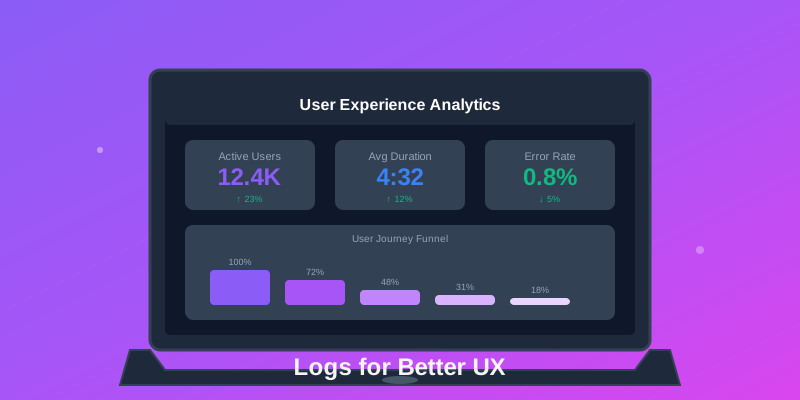
Most developers think of logs as debugging tools—something you check when things break. But logs are goldmines of user experience data. Every user interaction, every feature engagement, every moment of friction leaves a trace. This guide reveals seven powerful ways to transform your app logs into actionable UX insights that help you build better products.
1. Track User Flows and Drop-Off Points
Understanding where users abandon critical flows (signup, checkout, onboarding) is essential. Logs reveal exactly where users drop off.
// Log each step in the checkout flow
Logtrics.info("Checkout started", tags: ["funnel", "checkout"])
Logtrics.info("Payment method selected", tags: ["funnel", "checkout"])
Logtrics.info("Shipping address entered", tags: ["funnel", "checkout"])
Logtrics.info("Order confirmed", tags: ["funnel", "checkout"])

// In your analytics dashboard, you'll see:
// Started: 1000 users
// Payment method: 850 users (15% drop-off)
// Shipping address: 720 users (13% drop-off)
// Confirmed: 680 users (5.5% drop-off)
With this data, you can identify that the payment method screen is your biggest drop-off point and investigate why (UI complexity, loading time, payment options).
2. Measure Feature Adoption
You shipped a new feature—but is anyone using it? Logs tell you instantly.
// Track feature discovery and usage
Logtrics.info("Feature viewed: Dark Mode Toggle", data: [
    "source": "settings_screen",
    "user_segment": "premium"
])

Logtrics.info("Feature activated: Dark Mode", data: [
    "enabled": true,
    "time_to_discovery_seconds": 45
])

// Calculate adoption rate
// Viewed by: 5,000 users
// Activated by: 3,200 users
// Adoption rate: 64%
Low adoption? Consider better placement, onboarding tooltips, or promotional messaging.
3. Identify Slow Performance Experiences
Users won't report "the app feels slow"—they'll just leave. Log performance metrics to catch slowness before it impacts retention.
// Log screen load times
let startTime = Date()
loadUserProfile { profile in
    let loadTime = Date().timeIntervalSince(startTime)

    Logtrics.info("Screen loaded: Profile", data: [
        "load_time_ms": Int(loadTime * 1000),
        "data_size_kb": profile.sizeInKB,
        "network_type": NetworkMonitor.currentType
    ])

    // Flag slow experiences
    if loadTime > 3.0 {
        Logtrics.warning("Slow profile load", data: [
            "load_time_ms": Int(loadTime * 1000),
            "user_id": profile.id
        ])
    }
}
Aggregate slow load warnings to identify patterns: specific users, network conditions, or data sizes causing poor experiences.
4. Detect UX Friction Points
Users retrying actions, going back repeatedly, or spending excessive time on simple tasks indicates friction.
// Track retry patterns
Logtrics.info("Login attempt", data: ["attempt": 1])
Logtrics.warning("Login failed", error: "invalid_password")
Logtrics.info("Login attempt", data: ["attempt": 2])
Logtrics.warning("Login failed", error: "invalid_password")
Logtrics.info("Password reset clicked")

// Track navigation patterns
Logtrics.addBreadcrumb("Viewed pricing")
Logtrics.addBreadcrumb("Back to home")
Logtrics.addBreadcrumb("Viewed pricing")
Logtrics.addBreadcrumb("Back to home")
Logtrics.addBreadcrumb("Viewed pricing")
Logtrics.addBreadcrumb("Clicked contact support")

// This pattern reveals: Pricing page is confusing
5. Monitor Search Effectiveness
Search is critical UX—track queries, results, and whether users find what they need.
// Log search behavior
Logtrics.info("Search query", data: [
    "query": searchText,
    "results_count": results.count,
    "search_time_ms": queryDuration
])

// Track zero-result searches
if results.isEmpty {
    Logtrics.warning("Zero search results", data: [
        "query": searchText,
        "suggestion_shown": didShowSuggestion
    ])
}

// Track search abandonment
Logtrics.info("Search result clicked", data: [
    "query": searchText,
    "clicked_position": 3,
    "result_id": selectedItem.id
])

// Analyze:
// - Top queries with zero results (improve content/indexing)
// - Queries with results but no clicks (relevance issue)
// - Average position of clicked results (ranking quality)
6. Track Error Recovery Patterns
Not all errors crash the app. Track how users recover from errors to improve error handling UX.
// Track error and recovery
Logtrics.error("Upload failed", error: uploadError, data: [
    "file_size_mb": fileSize,
    "error_type": "network_timeout"
])

Logtrics.info("Retry button clicked", data: [
    "error_context": "upload_failed"
])

Logtrics.info("Upload succeeded", data: [
    "retry_count": 1,
    "total_time_seconds": 45
])

// Insights:
// - 85% of users retry after network errors → Good!
// - 60% of users abandon after "file too large" error → Add better messaging
// - Users rarely retry after "invalid format" → Validate earlier
7. Analyze Session Duration and Engagement
Session length and feature usage patterns reveal whether users find your app valuable.
// Track session lifecycle
class SessionTracker {
    func applicationDidBecomeActive() {
        sessionStartTime = Date()
        Logtrics.startSession()
        Logtrics.info("Session started")
    }

    func applicationWillResignActive() {
        let duration = Date().timeIntervalSince(sessionStartTime)
        let screenCount = visitedScreens.count
        let actionCount = userActions.count

        Logtrics.info("Session ended", data: [
            "duration_seconds": Int(duration),
            "screens_viewed": screenCount,
            "actions_performed": actionCount,
            "engagement_score": calculateEngagement()
        ])

        Logtrics.endSession()
    }
}
High session duration + high action count = engaged users. Low duration + few actions = poor first experience or lack of value.
Building a UX Dashboard
To make these insights actionable, aggregate logs into dashboards showing:
- Funnel Conversion Rates - Visualize drop-offs across critical user flows
- Feature Adoption Trends - Track new feature usage over time by user segment
- Performance Percentiles - P50, P95, P99 load times for key screens
- Error Recovery Rates - How often users successfully recover from errors
- Search Quality Metrics - Zero-result rate, click-through rate, average position
- Session Engagement Distribution - Histogram of session lengths and actions
- Friction Heatmap - Screens with highest retry/back button rates
Best Practices
- Use consistent tag naming for easy filtering (
funnel,feature_usage,performance) - Include user segments in log metadata (free vs premium, new vs returning)
- Set up alerts for sudden changes (drop-off spike, adoption drop, performance degradation)
- Review UX metrics weekly, not just when something breaks
- Combine logs with A/B test results for data-driven decisions
- Respect user privacy—aggregate data, don't identify individuals
- Log both positive and negative events (success + failure, start + complete)
Real-World Impact
Teams using logs for UX insights report:
- 23% increase in checkout completion after identifying payment selection friction
- 2x feature adoption after improving discoverability based on usage logs
- 40% reduction in support tickets by proactively fixing slow experiences
- 18% improvement in search success rate after analyzing zero-result queries
Conclusion
Logs aren't just for debugging crashes—they're your window into user behavior. By logging user flows, feature adoption, performance, friction points, search patterns, error recovery, and session engagement, you gain actionable insights to improve your app's UX. Start with one flow (like checkout or onboarding), instrument it thoroughly, and use the data to iterate. The apps with the best UX aren't built on guesses—they're built on data.
Get Started with Logtrics
Comprehensive mobile app logging, crash reporting, and performance monitoring.
Get Started →