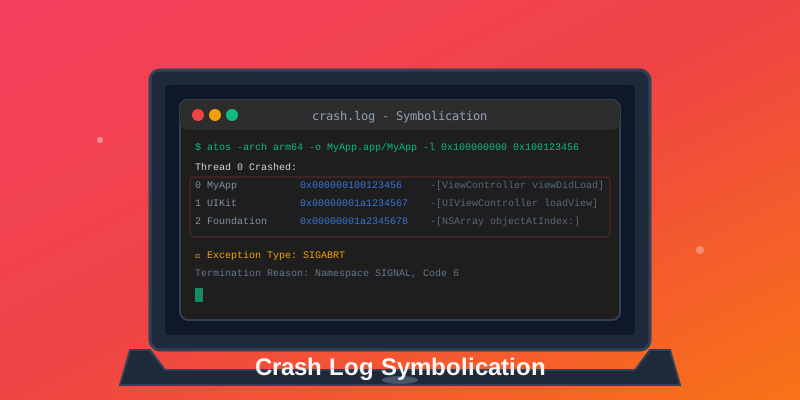
Crash logs are cryptic, but they contain everything you need to fix bugs. This guide teaches you how to read, understand, and symbolicate crash logs for iOS and Android, turning hexadecimal addresses into readable function names and line numbers that point directly to the problematic code.
What is Symbolication?
When your app crashes, the operating system generates a crash report containing memory addresses like 0x000000010012ab34. These addresses are useless without symbolication—the process of converting them to human-readable format:
Before symbolication:
0 MyApp 0x000000010012ab34 0x100000000 + 1223476
After symbolication:
0 MyApp 0x000000010012ab34 -[UserViewController loadUserData] + 124 (UserViewController.m:47)
iOS Crash Log Symbolication
Method 1: Automatic in Xcode
The easiest way if you have the archive:
- Open Xcode → Window → Organizer
- Select your app and build
- Drag the crash log (.crash file) into the crash logs section
- Xcode automatically symbolicates it
Method 2: Manual with atos
When you don't have the archive or need to script it:
# Extract the load address and crash address from log
xcrun atos -arch arm64 \
  -o MyApp.app.dSYM/Contents/Resources/DWARF/MyApp \
  -l 0x100000000 \
  0x000000010012ab34

# Output
-[UserViewController loadUserData] (in MyApp) (UserViewController.m:47)
Method 3: Symbolicate Entire Crash Log
# Using Apple's symbolication script
export DEVELOPER_DIR="/Applications/Xcode.app/Contents/Developer"

./symbolicatecrash crash.log MyApp.app.dSYM > symbolicated.crash

# Or use Xcode's built-in tool
xcrun symbolicate crash -o symbolicated.crash -d MyApp.app.dSYM crash.log
Android Crash Log Symbolication
For Native Crashes (NDK)
Use ndk-stack to symbolicate native crashes:
# Extract stack trace from logcat
adb logcat | ndk-stack -sym app/build/intermediates/cmake/debug/obj/arm64-v8a

# Or from a crash file
ndk-stack -sym path/to/symbols -dump crash.txt
For ProGuard/R8 Obfuscated Crashes
Deobfuscate Java/Kotlin stack traces:
# Using retrace tool
retrace -verbose mapping.txt stacktrace.txt

# mapping.txt is in app/build/outputs/mapping/release/
Understanding the Crash Log
Key Sections to Examine
1. Exception Type
Tells you what went wrong:
- EXC_BAD_ACCESS (SIGSEGV) - Accessed invalid memory
- EXC_CRASH (SIGABRT) - Assertion failure or exception
- EXC_BREAKPOINT (SIGTRAP) - Forced crash or Swift error
- SIGBUS - Misaligned memory access
2. Crashed Thread
The stack trace shows the call hierarchy when the crash occurred. Read from bottom (oldest) to top (newest).
3. Application Specific Information
Often contains the actual error message or assertion that failed.
Troubleshooting Symbolication
Symbols Not Found
If symbolication fails, verify:
- dSYM UUID matches the crash log UUID:
dwarfdump --uuid MyApp.app.dSYM - Correct architecture is being used (arm64 vs armv7)
- Build configuration matches (Debug vs Release)
- dSYM file wasn't stripped during build
Automated Symbolication
For production apps, manual symbolication is impractical. Use automated services:
- Logtrics - Automatically symbolicates all crash reports
- App Store Connect - Provides pre-symbolicated crash reports
- Firebase Crashlytics - Symbolicates crashes automatically
Best Practices
- Always save dSYMs/mapping files for each release build
- Upload symbols to your crash reporting service immediately after release
- Use build numbers to match symbols with crashes
- Archive symbols in version control or a symbol server
- Test symbolication process before releasing to production
Advanced: Crash Context Analysis
Reading Complex Stack Traces
Stack traces follow a call hierarchy. Identify the key frames:
Top Frame: Where the crash happened (deepest call)
Next Frames: Call chain leading to crash
Bottom Frame: Entry point (shallowest call)
Root Cause: Usually 2-3 frames from the top
Common Crash Patterns
Pattern: Null Pointer Dereference
Top frame: Accessing nil object → Check object initialization
Pattern: Array Out of Bounds
Top frame: Array index >= length → Add bounds checking
Pattern: Memory Exhaustion
Exception: Out of memory → Look for memory leaks in stack
Pattern: Deadlock/Hang
Watchdog timeout in frame → Identify blocking operation
Using Breadcrumbs with Symbolicated Stacks
Combine symbolicated stack traces with breadcrumbs for complete context:
// Breadcrumbs show what happened before crash
Breadcrumb 1: User tapped "Purchase" button
Breadcrumb 2: Network request started
Breadcrumb 3: Processing payment response
Breadcrumb 4: Accessing nil price field → CRASH

Stack Trace shows exactly where in code this happened
Symbol File Management Best Practices
- Version Control: Store symbol files with corresponding app version
- Symbol Server: Use BinTray or CloudSymbols for automatic storage
- Build Pipeline: Automatically upload symbols after each release build
- Retention: Keep symbols indefinitely (minimal storage cost)
- Validation: Verify symbol UUIDs match app builds before shipping
Conclusion
Symbolication transforms unintelligible crash logs into actionable debugging information. Whether you choose manual symbolication with atos and retrace or automated solutions like Logtrics, mastering this skill dramatically reduces the time needed to fix production crashes. By understanding stack trace patterns, using breadcrumbs effectively, and managing symbols properly, you can quickly identify and resolve even the most complex crashes. Always preserve your symbol files, understand the crash log structure, and use the right tools for your platform to quickly identify and resolve issues.
Get Started with Logtrics
Comprehensive mobile app logging, crash reporting, and performance monitoring.
Get Started →